Notebooks-On-Demand (Nod): A JupyterLab Extension for a Notebook Anywhere
A tour of Notebooks-On-Demand
Nod: Notebooks-on-Demand is an open-source JupyterLab extension that lets you jump into a Jupyter notebook from anywhere in a Python codebase. Just call notebook() from anywhere in your .py file, run it with nod, and a notebook opens at that point in the program with all your variables already loaded into the notebook state. When you’re done making edits, send them back to your original Python file with a click.
Here’s what it looks like in practice. Say you have this Python program:
from nodpy import notebookdef f(a,b):
x = 1
notebook() #our program will pause heredef d(a):
b = 2
f(a,b)d(4)All you need to do is execute your program with nod at the start:
nod python -m myfileand a new JupyterLab session will open which looks like this:
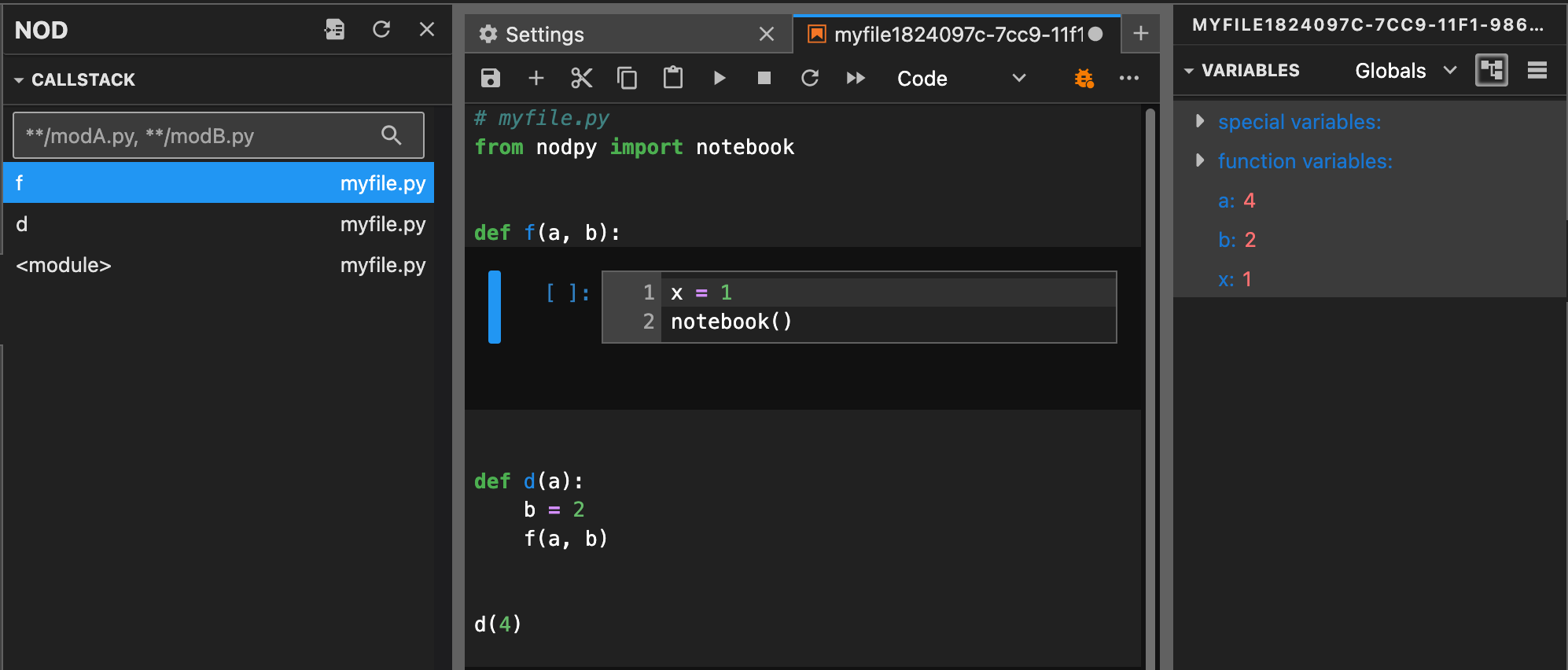
Left: The Nod Control Panel shows the call stack for our notebook() call, Center: The notebook created from the current Nod Session, Right: The JupyterLab Debugger shows the current variables in our kernel
You’ll notice a couple of things. First, on the right-hand pane, you’ll see that the current notebook state matches the variables available in the Python program at the place notebook() was called. Second, the body of the current function f is editable, and the surrounding code is displayed for context.
From here, you can use your on-demand notebook to write and debug the function f. When you’re done, you can send your new code back to the original source file with a button at the top of the Nod Panel on the left (see the repository for detailed instructions). Whatever you wrote in your on-demand notebook will replace the current body of f in the source file. The notebook cells will be converted to newlines, and markdown cells are converted to comments (thanks to Jupytext!). We can also re-run our program from the beginning with these new changes in our source file through the Nod panel.
Here’s a few scenarios that Nod might be helpful:
Scenario 1: You’re working in a large Python project and code is spread over countless files, classes, and function calls. You begin writing a new function, but the arguments are complex and questions abound: What exactly does that class method return? When I join these two tables, what does the output look like? How do I even construct the inputs to this function?
You think: This would be so much easier if I could just write this function in a notebook!
Instead of manually copying out code snippets, writing data structures to files and reading them into a notebook, and perhaps getting something to work eventually, you can just call notebook(), and a Jupyter notebook appears with just the body of your function and the function’s arguments already in your notebook state.
Scenario 2: You realize there’s a bug in a specific function when called with specific arguments. You could use a breakpoint() to inspect the program, but you don’t just want to look at the arguments, you want to see if different ways of changing the arguments remove the bug when you run the function code. Instead, you call notebook() when the function is invoked with the buggy arguments, opening a Jupyter notebook on the function definition with those arguments loaded in the notebook state. You can modify the arguments and rerun your code in the notebook to test different outcomes and implement your fix. When you’re done, you can send the changes back to your source file and restart (opening a notebook-on-demand for your new program), verifying that your program is now running as expected.
Scenario 3: You use an AI system to generate some code, but there’s a crucial part you want to really understand. Just call notebook() at that part, and now you have the full functionality of a notebook to walk line-by-line through the code, printing and visualizing the output at each step or experimenting with alternative decisions.
Nod’s on-demand notebooks are designed to be disposable. After you’ve sent your changes back to your source file, all the information to recreate the notebook is already in your Python file, so you can safely quit the JupyterLab session and continue programming in your text editor of choice. Your code can live in your text editor and Python source files, but Nod makes a quick trip to a notebook easy.
While I’ve found this workflow by itself to be really helpful in my own programming, Nod can do two other things that are pretty neat:
First, you don’t just have to stay in the function body where you called notebook(); you can also navigate up and down the call stack with the Nod panel on the left. For example, you can select the function d to see how f was called:
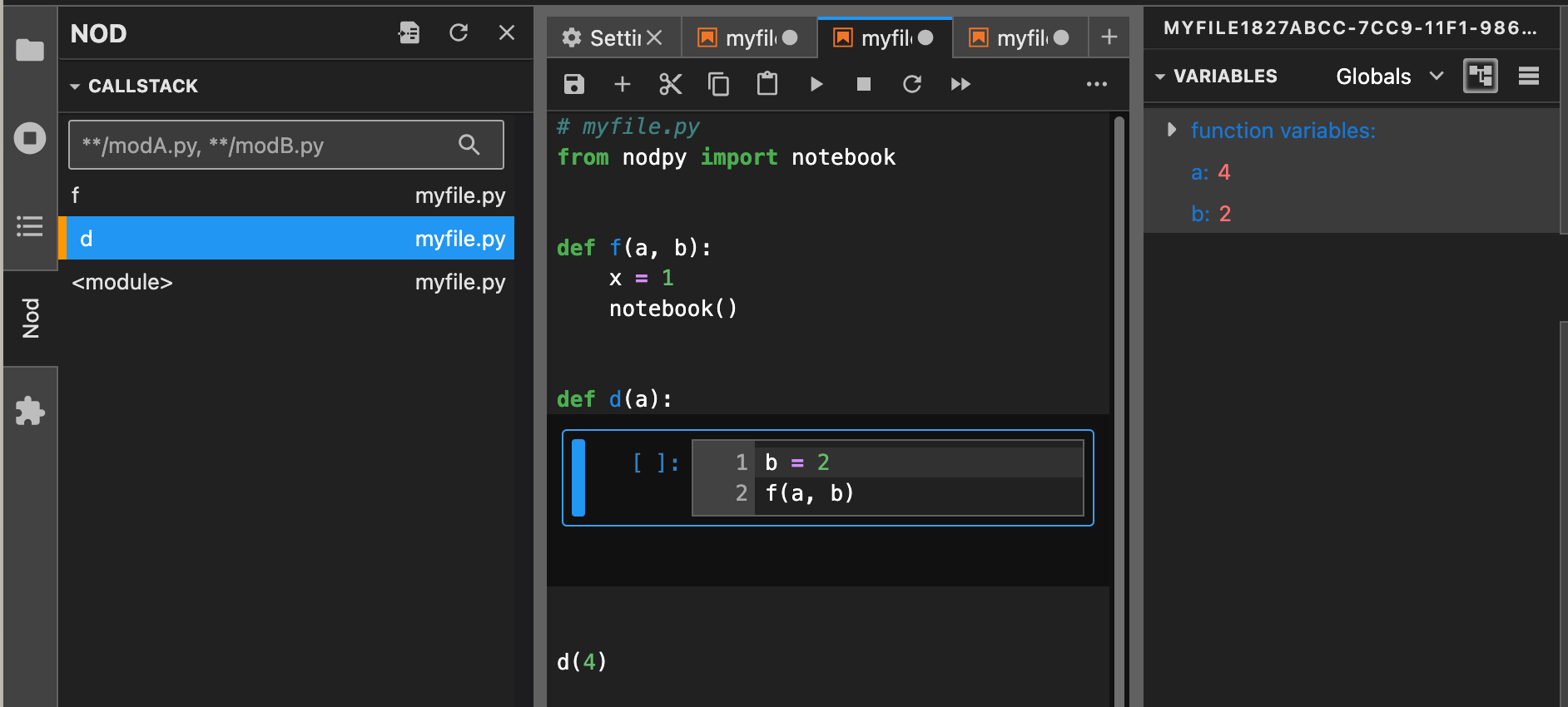
The Nod Panel on the Left navigates down the callstack, replacing the current notebook and the state to match.
Both our notebook and the current variables update to our new position in our program (x isn’t in our debugger pane on the right anymore, since it’s not available within function d).
Second, you can use nodLog() to collect a bunch of values from your program to poke and prod in an on-demand notebook. Take a look at the following file:
from nodpy import notebook, nodLogdef f(a, b):
if a == 4:
notebook()
else:
nodLog(a, b)f(2, [1, 2, 3])
f(3, {"s": 1})
f(4, 1)Running it will pop open a JupyterLab interface where, on the right, you’ll have access to a “Nod Log” pane, which lets you select assignments to a and b for the on-demand notebook session among the values you saved with nodLog():
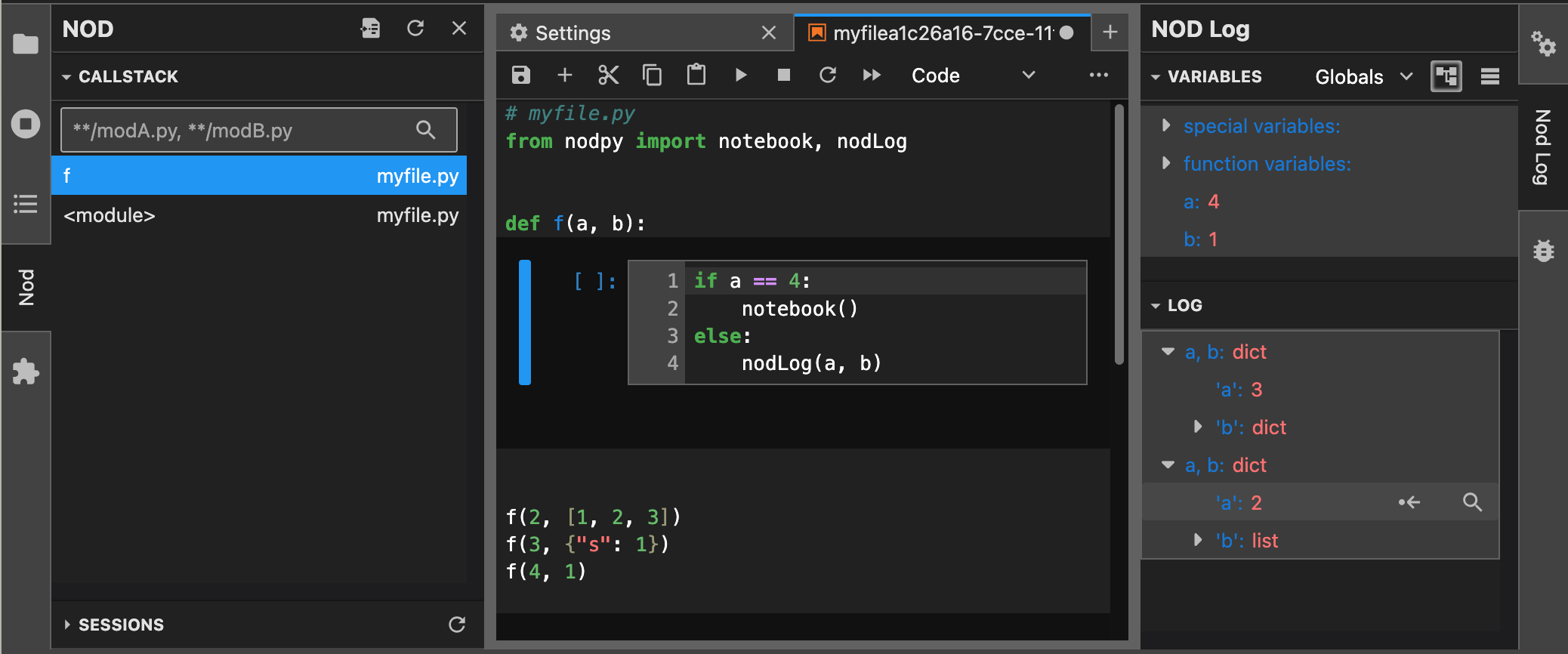
nodLog() captures variables while your program runs and makes them available in the on-demand notebook session to experiment with.
When working with Python objects which can vary in unpredictable ways (like the results of a JSON API call or some other heavily-nested Python dictionary), I find nodLog() to be helpful in gauging the possible values I need to handle when writing a new function. It lets me inspect and switch between different inputs to my function easily.
Nod is free and open-source, so check it out here if you’re interested. Nod also works with JupyterHub with a slightly different workflow (see the repository for a guide!). My goal with Nod is to add to the situations where Jupyter Notebooks are a useful tool. If you have ideas about more ways Nod can be helpful or feedback to make it better, please leave an issue on the Github page and we can discuss!